When the recognition service returns a token, it only means you have obtained a credential—whether the target website accepts it is another matter. After submission, verification failures mostly fall into five areas:
- Token expired or submitted twice, commonly reported as
timeout-or-duplicate; - The context used to generate the token doesn't match the target page, e.g., sitekey, page URL, action, rqdata;
- The token didn't make it into the actual request, or was written but didn't trigger the component callback;
- reCAPTCHA v3/Enterprise verification passes but the score doesn't meet the business threshold;
- The IP or session environment differs between token generation and form submission.
So the first step is not to change proxies or platforms, but to identify which layer the failure occurs at, then check the specific cause against the error code.
Step 1: Determine Which Layer the Failure Is In
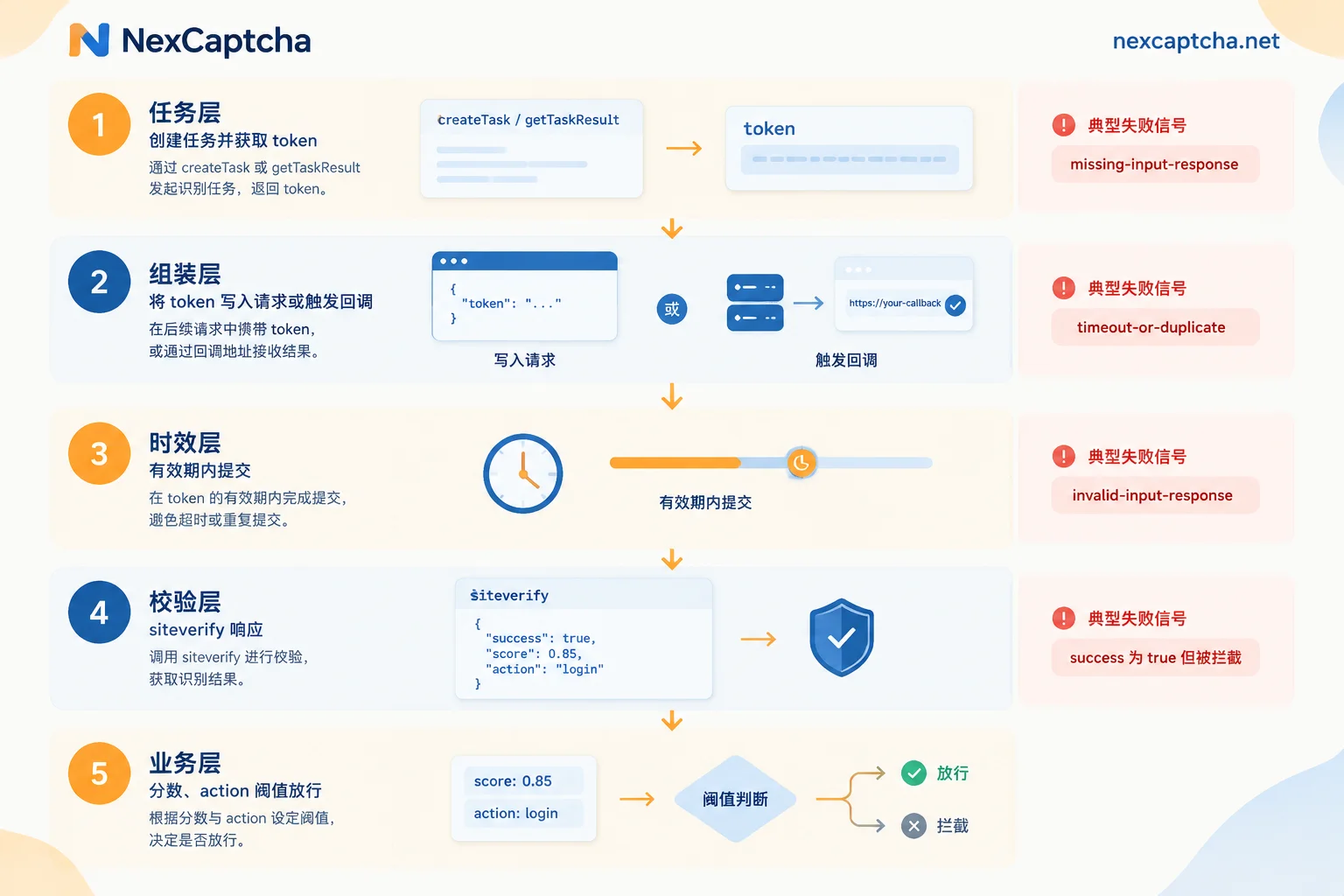
From obtaining the token to business approval, it can be broken down into five layers, confirm each:
- Task layer: Whether the recognition task actually completed and returned a token. Taking NexCaptcha as an example, submit the task via
createTask, then poll withgetTaskResult(or use webhook) to get the result. Failures at this layer manifest as task errors or timeouts, which are not the focus of this article. - Assembly layer: Whether the token appears in the actual request sent. You can confirm using the browser Network panel, HAR file, or HTTP client logs.
- Time validity layer: How much time elapsed between obtaining the token and submitting it.
- Verification layer: What the captcha vendor returns when the target backend calls siteverify.
- Business layer: After siteverify returns success, whether business rules (score threshold, action, hostname) allow it.
If the backend is your own system, or an authorized test environment, log the full siteverify response directly—that's the most direct evidence. If you can only see frontend prompts like 'Please try again', you can only infer by controlling variables: change one condition at a time and see if the result changes.
Step 2: Narrow Down by Error Code
reCAPTCHA's siteverify returns error-codes. hCaptcha and Turnstile's verification endpoints have similar fields; refer to their respective documentation for specific code values. Common ones:
| Symptom / Error Code | Most Likely Layer | What to Check First |
|---|---|---|
missing-input-response or empty token field in request | Assembly layer | Whether hidden field is written, framework state updated, callback triggered |
timeout-or-duplicate | Time validity layer | Time from token acquisition to submission; whether old token was reused on retry |
invalid-input-response | Task parameters / Assembly layer | sitekey, websiteURL, task type, action/rqdata; whether token was truncated |
success: true but still blocked | Business layer | Whether v3 score, action, hostname match backend rules |
| Sometimes succeeds, sometimes fails, behaves differently on different networks | Environment consistency | Proxy mode, exit IP, Cookie and UA consistency |
Below we explain each cause one by one.
Cause 1: Token Expired, or the Same Token Submitted Twice
Captcha tokens have a time limit and can only be used once. The response token validity for Google reCAPTCHA and hCaptcha is typically around 2 minutes, and Cloudflare Turnstile is up to 300 seconds. Beyond the time window, or if the same token has already been verified once, siteverify returns timeout-or-duplicate.
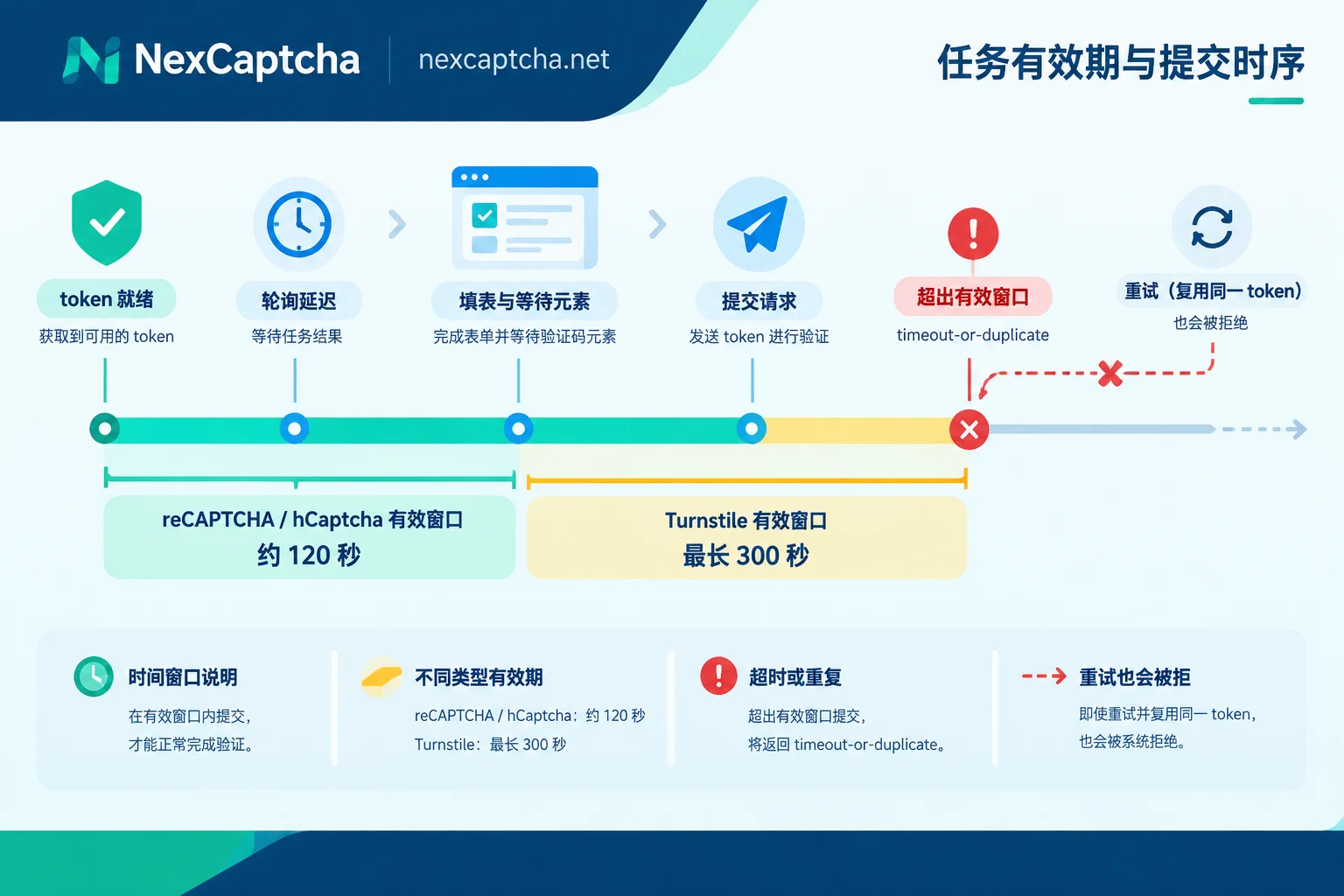
Common triggers in automated flows:
- Polling interval too long: The task actually completed long ago, but the script fetches the result much later, consuming part of the validity period.
- Getting the token too early: Obtaining the token first, then filling the form, waiting for elements, navigating pages, and finally submitting.
- Pre-fetching token pools: Generating in batches ahead of time to save time, but by the time of use, it's near or past expiry.
- Retry logic reusing old token: The first submission times out on the network, but the backend already verified it; retry sends the same token again.
- Page refresh after obtaining token: The component re-renders, and the old token doesn't match the new challenge.
Corresponding handling: Put the recognition task creation as the last step before submission; create a new task for each retry; log 'result ready time' and 'submission time' separately to calculate the actual interval. If polling itself takes a lot of time, consider switching to callback—see What's the difference between captcha API polling and callback.
Cause 2: Task Parameters Inconsistent with Target Page Context
The token is bound to the context in which it was generated. If parameters are wrong, the task can still return a token, but the backend verification won't pass, commonly reporting invalid-input-response, or it may be outright rejected. Check each item:
- sitekey: Read from the currently rendered component, don't always use a hardcoded value. The same site may have different sitekeys for test and production environments, or different pages; there may also be multiple components on one page.
- websiteURL: Fill in the page URL where the captcha component loads, not the API endpoint the form submits to.
- Task type: reCAPTCHA v2, v3, and Enterprise have different task types; selecting the wrong type usually yields a token that fails verification. For version differences, see reCAPTCHA v2 vs v3 difference.
- reCAPTCHA v3 / Enterprise action: The action used in the client execute must match what the backend expects. Look in the page scripts for the action value passed when
executeis called. - Turnstile action / cdata: If the site configured these on the component and validates them server-side, they need to be passed along.
- hCaptcha Enterprise rqdata: This value is dynamic, bound to the current challenge, must be freshly obtained each time, and cannot be cached or reused. For integration details, see How to integrate hCaptcha recognition API.
Also confirm whether the page shows a Turnstile component or a Cloudflare full-page Challenge. The credentials and handling differ; using a Turnstile token to handle a full-page Challenge will not succeed. For the difference, see What's the difference between Turnstile and 5-second shield.
Cause 3: Token Not Included in Request, or Callback Not Triggered
This category is most common in browser automation. Many scripts just write the token into hidden fields: reCAPTCHA is g-recaptcha-response, Turnstile is cf-turnstile-response, hCaptcha usually h-captcha-response. But in single-page apps like React or Vue, directly modifying the DOM value won't update the app's internal form state, so the payload sent to the backend still has an empty token.
Another case: The website controls submission via callback functions. The component has data-callback configured, or a callback passed during rendering; only when the callback is invoked does the submit button enable or the form send. In this case, after writing the token, you also need to actively call the page's callback function with this token. Some approaches find the reCAPTCHA callback from ___grecaptcha_cfg.clients, but that's Google's internal structure and can change at any time. A more reliable way is to find the actual callback name from page scripts or component attributes.
How to tell: Don't just look at the DOM; look at the actual request sent. In Playwright or Puppeteer, listen to the submission request and check whether the request body contains the token field and its length is normal. If it's not there, the problem is in the assembly layer, unrelated to the recognition service or IP.
Cause 4: v3 / Enterprise Verification Succeeds but Score Is Insufficient
reCAPTCHA v3 and Enterprise are score-based captchas. siteverify returning success: true only means the token format is valid and still within the validity period. The response also includes a score from 0.0 to 1.0, score, and the business backend sets its own threshold. For example, if a site requires 0.7 and you only get 0.3, it will be blocked at the business layer, and the frontend often just shows a generic 'verification failed'.
This layer's outcome is partly outside the recognition service's control. Three things you can do: confirm the action is correct; keep the submission environment consistent (see next section); if the service you use supports specifying relevant parameters for score-based tasks, configure according to its current documentation. If you control the backend, log score, action, and hostname to determine whether the issue is insufficient score or field mismatch.
Cause 5: IP and Session Environment Inconsistent
Google and hCaptcha's siteverify both support an optional parameter remoteip. Some sites check the client IP that generated the token against the IP that submits the request, and WAFs may also flag such inconsistencies. When using tasks without proxies (Proxyless), the token is generated on the recognition service's node, but submission comes from your local exit or another proxy, increasing the chance of rejection.
If you suspect this cause, switch to a proxy-enabled task type so token generation and submission use the same exit, while keeping Cookie, UA, and other session information consistent. But note: not all failures are IP-related. When you get timeout-or-duplicate, changing proxies won't help; when the request has an empty token, changing IP won't solve it either.
Fields Worth Logging for Troubleshooting
If every failure can be reconstructed from logs, troubleshooting will be much faster. Recommended to log:
- Task ID, task type, sitekey, websiteURL; whether action, rqdata were passed; proxy mode and exit IP
- Task creation time, result ready time, actual submission time
- Whether the token field exists in the submission request and its length (log only length, not the full value)
- Target site's returned status code, error code, or page prompt; attach the raw siteverify response when available
Do not log or screenshot the token itself, cookies, or API keys (e.g., clientKey in NexCaptcha request bodies).
Which Part the Recognition Service Handles
In this chain, NexCaptcha handles the task layer: generating tokens according to the task type and parameters you submit, and delivering results via getTaskResult polling or webhook. The subsequent assembly, time control, submission, and environment consistency are your script's responsibility. So when integrating, confirm two things first: the task type corresponding to the target site (e.g., difference between Enterprise and standard) is within the supported range listed on the official website; choose proxy or proxy-less tasks based on the target site's situation. The official site states billing is per thousand successful recognitions, with refunds for failures. As for whether 'token returned but rejected by target site' counts as a failure, refer to the platform's billing explanation; for related details, see How captcha API billing per thousand works.
If you are testing your own system, using the official test keys provided by the captcha vendor can cover most CI regressions without going through real recognition every time. For how to do it, see How to do Playwright captcha testing. When you need to integrate in an authorized real environment, you can check supported types on the NexCaptcha homepage and confirm specific task parameters through the engineer contact entry.