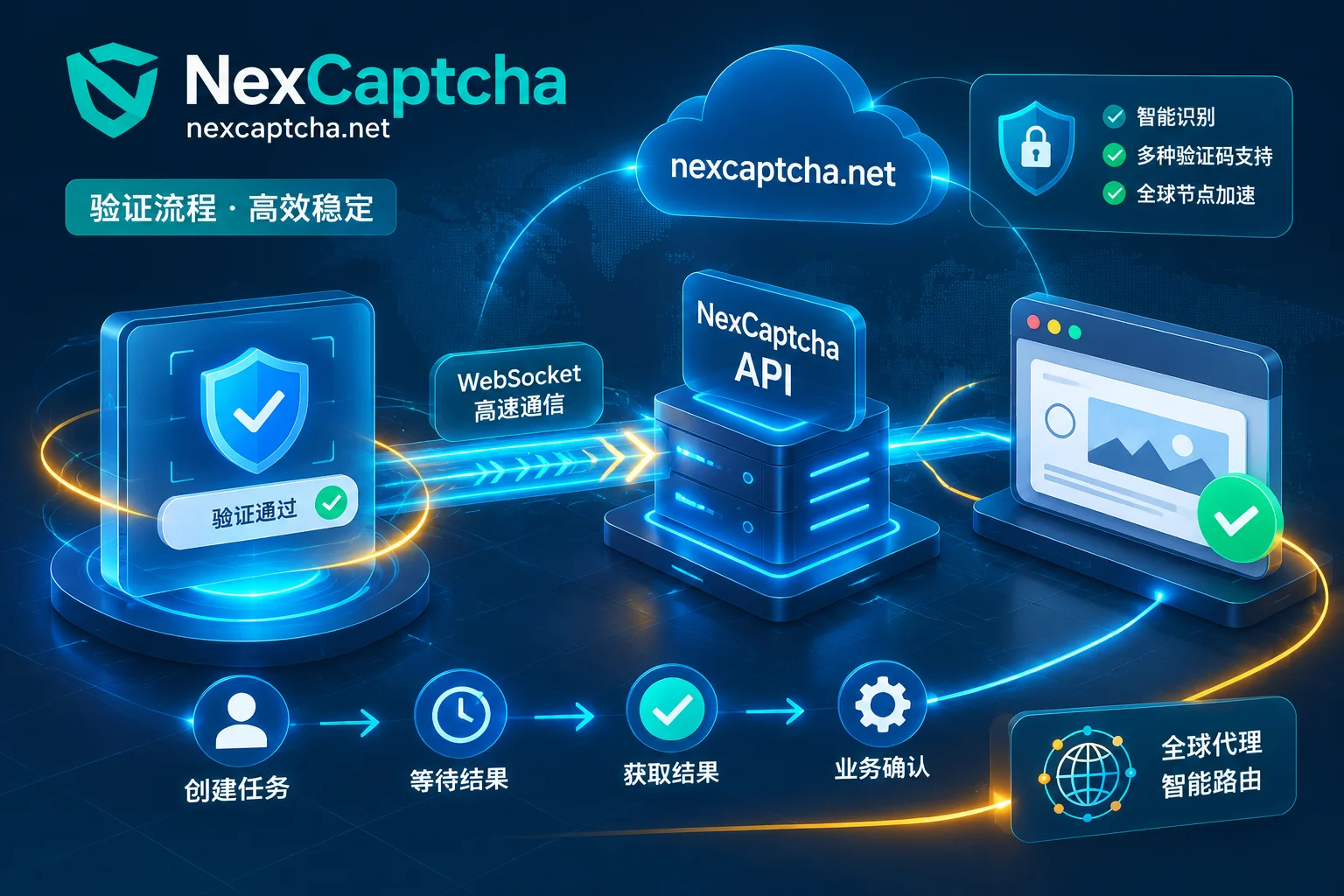
Integrating a reCAPTCHA solving API can be broken down into four steps:
- Determine the reCAPTCHA version on the page and extract parameters such as the sitekey.
- Submit an asynchronous task to the solving service.
- Get the token via polling or callback.
- Within 2 minutes, submit the token to the target page in the same browser session.
Whether verification passes is decided by the target site's backend validation. The solving API returning a token only means the first step is complete. Below, we explain what to prepare at each step in this order, and where things commonly go wrong.
First, confirm whether you actually need a solving API
If you are testing your own system or an authorized system, CI regression tests can directly use Google's official test keys. Test keys return predetermined results reliably, without depending on external services or incurring extra costs.
Solving APIs are mainly used in three scenarios:
- End-to-end acceptance testing in real production environments
- Accessibility assistive tools
- Permitted public data workflows
For how to set up a test environment, see How to do Playwright CAPTCHA testing.
Step 1: Determine the version
Different reCAPTCHA versions differ greatly in frontend triggering and backend validation. Solving services generally design separate task types for each version; if you choose the wrong type, even perfectly filled parameters later won't pass. Common indicators are:
- v2 checkbox: The page has a "I'm not a robot" checkbox, and may show an image challenge.
- v2 Invisible: No checkbox on the page; usually triggered when clicking the submit button, and only shows a challenge if the system deems it necessary. When submitting a task, you generally need to indicate that it's the invisible version.
- v3: No interaction at all. The page script calls
grecaptcha.execute(siteKey, {action: '...'})to obtain a token, and the site's backend receives a risk score between 0.0 and 1.0. Google's recommended default threshold is 0.5, but each site can set its own, and can set different thresholds for different actions. - Enterprise: The page typically loads
enterprise.jsand calls methods undergrecaptcha.enterprise. The backend obtains scores and reason codes via the Assessment API, and may also combine risk control capabilities such as Account Defender. Enterprise offers both checkbox and score-based keys.
For detailed differences between the two versions, see reCAPTCHA v2 vs v3 difference.
Step 2: Prepare request parameters
The table below lists common parameter names. Field names, case, and nesting structures vary across platforms; please refer to the current official documentation of the service you use.
| Parameter (common name) | Applicable version | Where to get it | Common mistakes |
|---|---|---|---|
| websiteURL | All | Full URL of the page where the CAPTCHA appears | Filling in the homepage or a pre-redirect URL |
| websiteKey | All | The render parameter of data-sitekey, api.js, or the first argument of execute | Picking the wrong one when multiple sitekeys exist on the page |
| pageAction | v3, score-based Enterprise | The action value in the execute call | Case mismatch, or using the default value directly |
| enterprisePayload / s (data-s) | Enterprise, some v2 | Dynamic parameters in the page or network requests | Reusing old values instead of reading from the current page each time |
| apiDomain | As needed | Whether the script actually loads from www.google.com or www.recaptcha.net | Default value does not match the actual domain |
| Proxy info | Proxy-mode tasks | The actual egress used by the automation environment | Not matching the browser's egress |
Some complex sites also require specific context cookies in Enterprise validation. Such requirements are site-specific non-public implementations and can only be confirmed by capturing traffic for the specific target.
Choose proxyless or proxy mode. In proxyless mode, the service provider's nodes complete the task. In proxy mode, you provide the proxy. For Google's own services, SERP, and similar scenarios with strict IP and session binding, if the network generating the token differs from the browser's network in IP or ASN, the request may be flagged as risky. However, not all sites validate this way. A safer order is:
- Test with proxyless mode first to confirm parameters are correct.
- If rejected, rule out other causes first.
- If still rejected, switch to proxy mode and make the proxy use the same egress as the browser.
Step 3: Submit the task and retrieve the result
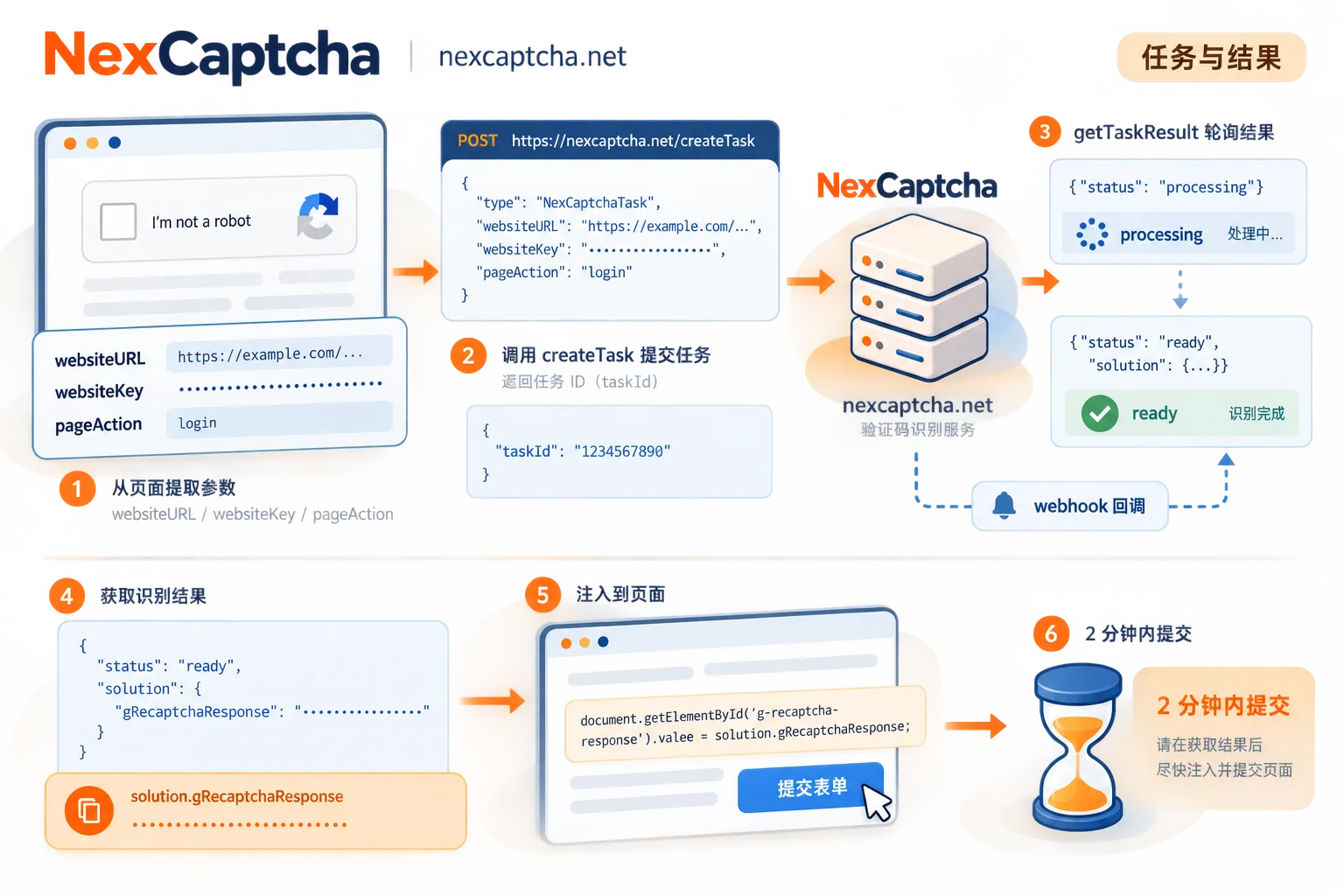
Mainstream solving services use an asynchronous task model:
- Call
createTaskto submit the task configuration and get a taskId. - Call
getTaskResultperiodically to check task status. - When the status becomes complete, retrieve
gRecaptchaResponsefromsolution.
Below is pseudocode illustrating the flow; it cannot run directly on any platform:
// 伪代码:仅说明流程,字段名以所用服务文档为准
resp = POST /createTask {
  clientKey: <从环境变量读取>,
  task: { type: <对应版本的任务类型>, websiteURL, websiteKey, pageAction?, 其他按需参数 }
}
taskId = resp.taskId

循环,直到超过总超时:
  等待几秒
  r = POST /getTaskResult { clientKey, taskId }
  如果 r 表示仍在处理:继续等待
  如果 r 表示已完成:token = r.solution.gRecaptchaResponse,结束循环
  如果 r 返回错误:记录错误码,按错误类型决定重试或止损
Three things to note during implementation:
- Set polling interval and total timeout separately. The total timeout should leave time for subsequently submitting the token; don't spend the entire 2-minute validity period waiting for the result.
- Classify error codes. Issues like parameter errors or insufficient balance won't succeed on retry and should be cut off immediately.
- Store keys only in server-side environment variables. Do not put them in frontend code or let them appear in logs.
For choosing between polling and callback, see What's the difference between CAPTCHA API polling and callback. If a task stays in processing for a long time, see What to do when a CAPTCHA task is stuck in processing.
Step 4: Use the token immediately after obtaining it
Google explicitly states that reCAPTCHA tokens expire after 2 minutes. Therefore, do not pre-generate tokens in batches and pool them for later use; the best practice is to submit each token as soon as you get it.
The injection method depends on the page implementation:
- v2: Typically fill the token into the
g-recaptcha-responsefield. If the page definesdata-callback, you also need to trigger the corresponding callback function. - v3 and Enterprise: The token is often sent to the backend by the page script along with the form; you need to deliver the token according to the page's actual request path.
For specific methods, see How to integrate a CAPTCHA API with Puppeteer.
Token returned but target site still rejects: troubleshoot in order
The solving API returning a token only means the challenge step is complete. The target site's backend (/siteverify or Enterprise Assessment) will also check:
- Whether the token is expired
- Whether the bound domain matches
- Whether the action matches
- Whether the score meets the threshold
- Whether the request's session state, cookies, and fingerprint are normal
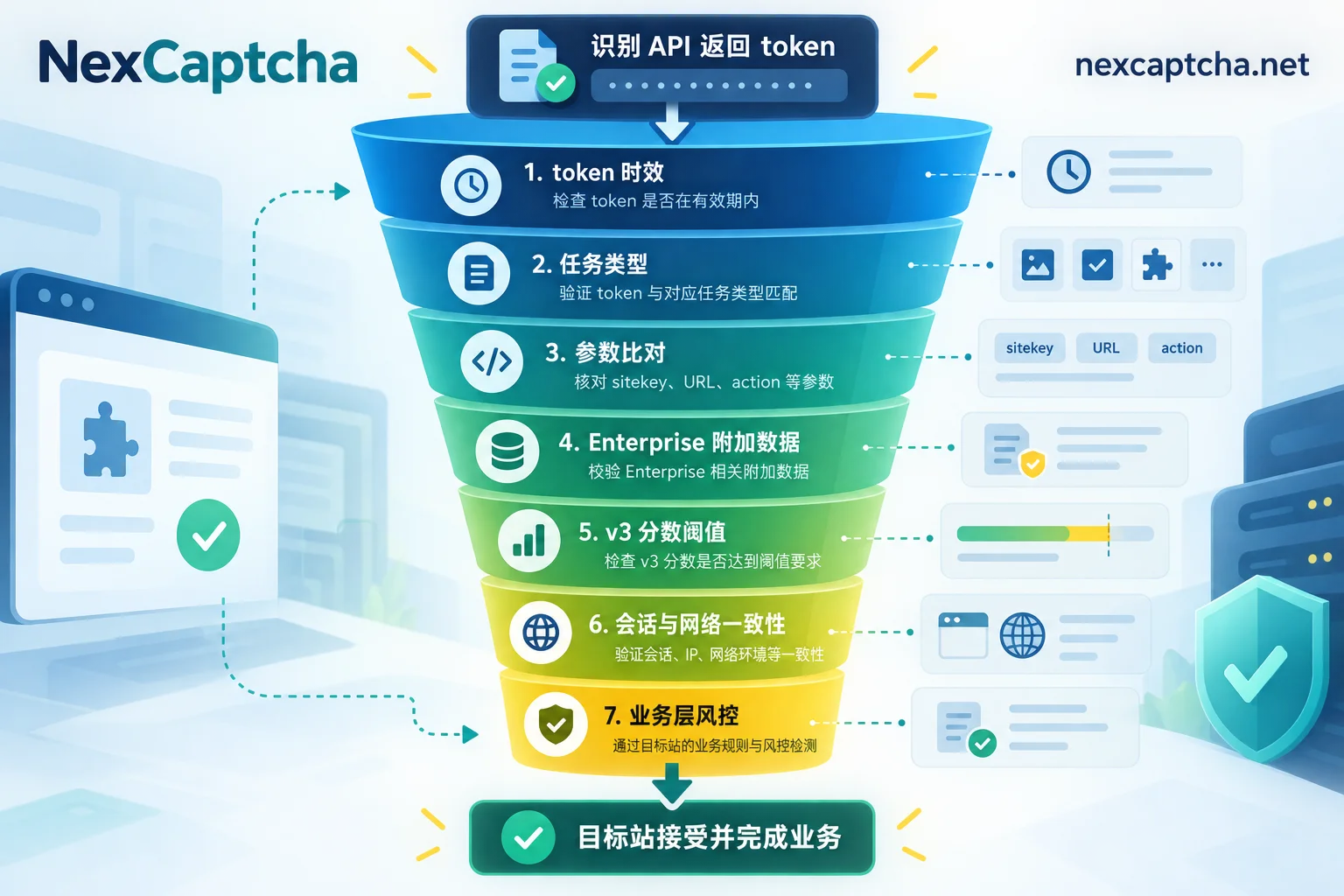
It is recommended to troubleshoot items in order from cheapest to most expensive:
- Timeliness: Does it take more than 2 minutes from obtaining the token to submitting it? Queuing, page redirects, and retries all consume time.
- Task type: Did you treat invisible v2 as the checkbox version, or Enterprise as the regular version?
- Parameters: Compare sitekey, URL, and action word by word with the actual values on the page, and confirm apiDomain.
- Enterprise extra data: Is the payload or s parameter read from the page for this attempt? Does the site require private cookies?
- v3 score: The site's threshold may be higher than 0.5; a low score doesn't necessarily mean wrong parameters.
- Session and network: Do the proxy egress, cookies, and browser fingerprint match the environment that generated the token?
- Business layer: The CAPTCHA passed, but other risk control rules on the site blocked it. At this point, the problem is no longer the CAPTCHA itself.
For detailed methods to locate each layer, see How to troubleshoot verification failure after CAPTCHA token is returned.
It is recommended to log three numbers separately: number of tasks successfully returned, number accepted by the target site, and number of business completions. Looking only at the first number will misattribute many problems to the solving service.
What to look for when choosing a reCAPTCHA solving service
- Version coverage: Whether v2 checkbox, invisible, v3, and Enterprise are supported separately, and whether Enterprise extra parameters and proxy mode can be passed in.
- Billing basis: Charged per success or per submission, and whether failures are refunded. Unit prices may differ by type; calculate costs based on your own task mix.
- Latency: Look at P50 and P95, not just averages, and consider them together with the 2-minute validity period.
- Acceptance rate: Run a small-scale controlled test with your own target page, using "accepted by target site" as the denominator.
For cost calculation methods, see CAPTCHA solving platform cost comparison.
About NexCaptcha. According to the public description on its homepage, NexCaptcha handles reCAPTCHA v2, v3, and Enterprise through a unified REST interface:
- Uses the task model of
createTaskandgetTaskResult, supporting polling and webhook callbacks. - The key is passed in the request body as the
clientKeyfield. - Billing is per thousand successful solves, with refunds for failures, and test credits are provided.
- The website claims partial compatibility with task formats from 2Captcha, Anti-Captcha, CapSolver, and CapMonster.
If migrating from these platforms, verify task type names, fields, callbacks, and error codes item by item; do not assume that just changing the domain will work. The latency and acceptance rates shown on the website are the provider's own statistics; it is recommended to run a small-scale controlled test with your own target page before deciding. For support details, pricing, and engineer contact information for each type, see the NexCaptcha official website.